
Account warmup protects your LinkedIn account when you're starting fresh or returning after a break. QuantumOutbound automates the entire process — you just need to enable it.
What Is Account Warmup?
Warmup is a 14-day automated process that gradually increases your LinkedIn activity limits. Instead of jumping straight to high outreach volumes (which can trigger LinkedIn's security systems), warmup starts with low daily limits and raises them every 4 days until your account reaches safe maximums.
QuantumOutbound handles everything automatically once warmup is enabled. No manual adjustments needed.
When to Use Warmup
Enable warmup if any of these apply:
- New LinkedIn account — fewer than 300 connections
- Returning from a restriction — LinkedIn previously flagged your account
- Inactive account — you haven't used LinkedIn actively for several weeks or months
- Newly connected to QuantumOutbound — you just linked your account and want to start safely
💡 Tip: If your account is already active with steady daily engagement and 500+ connections, you can skip warmup and set your limits manually.
How to Enable Warmup
- Go to Agents in the left sidebar
- Select the agent that owns the LinkedIn account
- Click Senders in the agent menu
- Click on your LinkedIn account to open its settings
- Scroll to the General section
- Check the Warmup checkbox
- Click Save
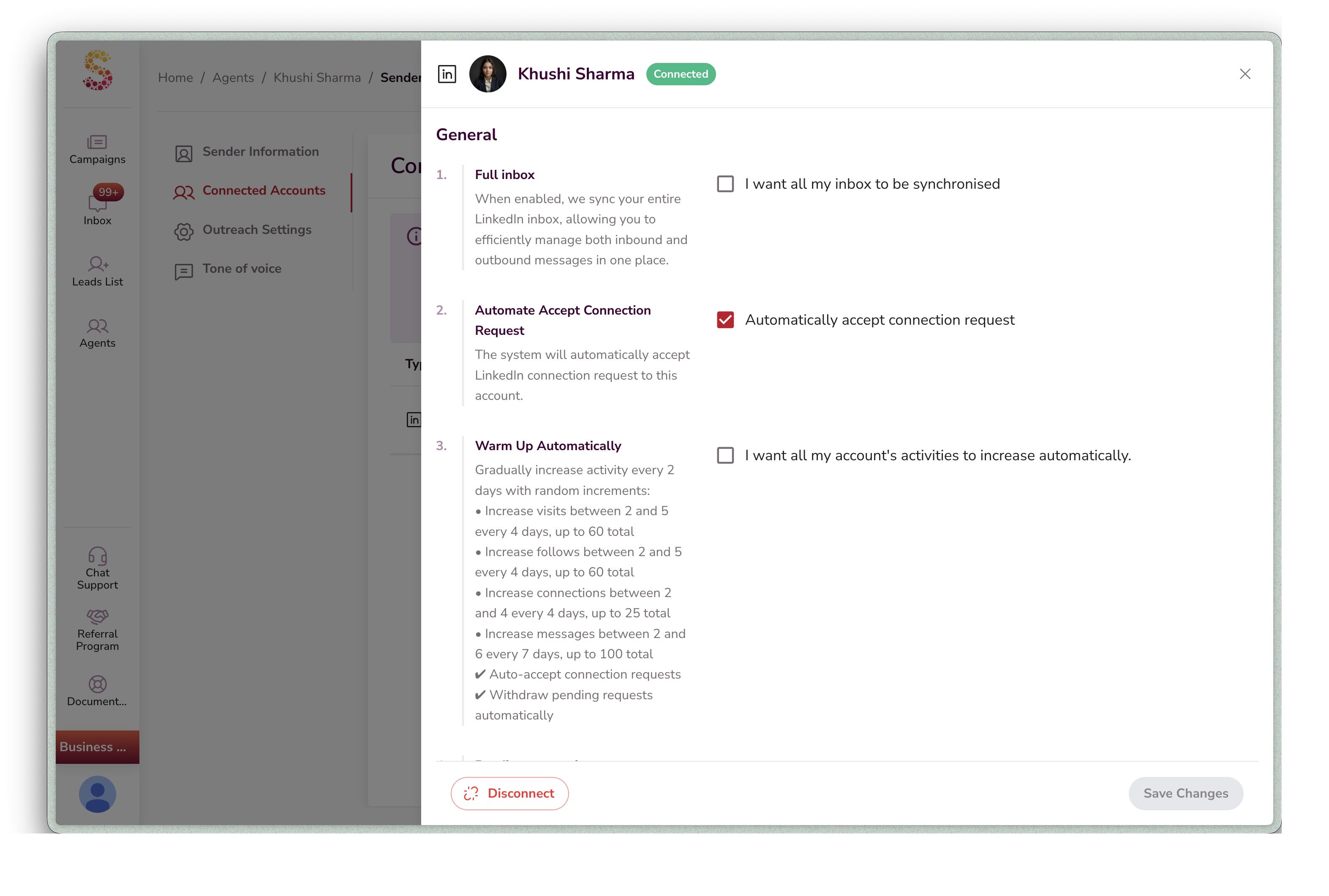
Once enabled, QuantumOutbound will:
- Set your daily limits to safe starting values (5 visits, 5 follows, 2 connections, 5 messages)
- Lock the daily limit sliders so they can't be changed manually
- Enable auto-accept connection requests
- Enable auto-withdraw pending requests after 2 weeks
- Disable prospect profile enhancement to reduce activity footprint
How to Disable Warmup
- Go to Agents → Senders → LinkedIn account → General
- Uncheck the Warmup checkbox
- Click Save
After disabling:
- Daily limit sliders unlock — you can adjust them manually
- Auto-accept and auto-withdraw settings stay as-is (you can change them separately)
- Your limits stay at whatever level they reached during warmup
The 14-Day Warmup Schedule
Limits increase automatically every 4 days. Here's the typical progression:
| Day | Profile Visits/Day | Follows/Day | Connection Requests/Day | Messages/Day |
|---|---|---|---|---|
| Day 1 (Start) | 5 | 5 | 2 | 5 |
| Day 4 | 7–10 | 7–10 | 4–6 | 7–11 |
| Day 8 | 9–20 | 9–20 | 6–14 | 9–23 |
| Day 12 | 11–35 | 11–35 | 8–26 | 11–41 |
| Day 14 (Maximum) | Up to 60 | Up to 60 | Up to 25 | Up to 100 |
Exact numbers vary slightly due to randomized increments — this makes your activity pattern look natural to LinkedIn.
What Warmup Changes in Your Account
| Setting | Effect During Warmup |
|---|---|
| Daily limit sliders | Locked — cannot be changed manually |
| Auto-accept connection requests | Turned on |
| Auto-withdraw pending requests | Turned on (after 2 weeks) |
| Prospect profile enhancement | Turned off |
| Daily limits | Controlled by the warmup schedule |
All settings revert to manual control when you disable warmup.
Safe Daily Limits After Warmup
Once warmup completes (or if you set limits manually), these are the recommended safe maximums:
| Action | Free LinkedIn | Premium LinkedIn |
|---|---|---|
| Profile Visits | Up to 60/day | Up to 150/day |
| Follows | Up to 60/day | Up to 150/day |
| Connection Requests | Up to 2/day | Up to 60/day |
| Messages | Up to 10/day | Up to 150/day |
👉 Note: Free accounts have significantly lower safe limits. If you're doing serious outreach, a LinkedIn Premium subscription (Sales Navigator or similar) is strongly recommended.
Account Security Best Practices
Profile Integrity
- Use a real-looking profile photo
- Fill in all profile sections: Headline, Experience, Skills, About
- Add 3–5 work experiences and 5–10 relevant skills
- Post 2–3 industry insights or engage with content before starting outreach
- Don't change your profile picture, name, or headline frequently
Proxies and Anti-Detect Browsers
If you're managing multiple LinkedIn profiles:
- Use an anti-detect browser (Multilogin, GoLogin, or AdsPower)
- Give each account its own separate proxy — QuantumOutbound provides secure proxies
- Never use multiple LinkedIn profiles in Chrome's profile manager — LinkedIn detects shared cookies and local storage
⚠️ Warning: Never log in to multiple LinkedIn accounts from the same device without an anti-detect browser. Sharing browser profiles between accounts is one of the fastest ways to trigger LinkedIn's detection systems.
Outreach Best Practices
- Personalize every message — use the prospect's name, company, or recent activity
- Use 3–5 message variations per campaign to avoid pattern detection
- Space out your outreach — don't send all messages in a short window
- Follow up thoughtfully — wait 2–3 days between follow-ups, no more than 3 total
- Engage naturally — like posts, leave comments, and view profiles before sending connection requests
Recommended Workflow
| Phase | Duration | What to Do |
|---|---|---|
| Setup | Day 0 | Connect your LinkedIn account, complete your profile, enable warmup |
| Warmup | Days 1–14 | Let QuantumOutbound gradually increase your limits automatically |
| Soft Launch | Days 15–21 | Start your first campaign with conservative messaging (5–10 messages/day) |
| Scale | Day 22+ | Increase outreach volume gradually based on response rates |
Troubleshooting
My daily limit sliders are greyed out and I can't change them. Warmup is active. Go to Agents → Senders → LinkedIn account → General and uncheck Warmup to regain manual control.
My limits are very low (5 visits, 2 connections). This is normal at the start of warmup. Limits increase every 4 days and reach their maximum by day 14.
My account got restricted during warmup. This is rare but can happen if your account was already flagged before warmup started. Disable warmup, wait for the restriction to lift, then re-enable warmup to start fresh.
I finished warmup but my limits seem off. Disable the warmup checkbox to unlock the sliders. You can then set any value within the allowed range.
Summary
- Warmup is a 14-day automated process that gradually increases your LinkedIn activity limits
- Enable it from Agents → Senders → LinkedIn account → General → Warmup checkbox
- Limits start at 5/5/2/5 (visits/follows/connections/messages) and increase every 4 days
- Maximum limits after warmup: 60 visits, 60 follows, 25 connections, 100 messages per day
- During warmup, limit sliders are locked and several safety features are enabled automatically
- After warmup, disable the checkbox to take manual control of your limits
What's Next
Once warmup completes, you're ready to scale your outreach. See the Campaign Creation Step-by-Step Guide to build your first campaign, or review the Safe Daily Limits section above to configure your settings manually.