
Prerequisites
- An active QuantumOutbound account
- A Zapier account (free or paid)
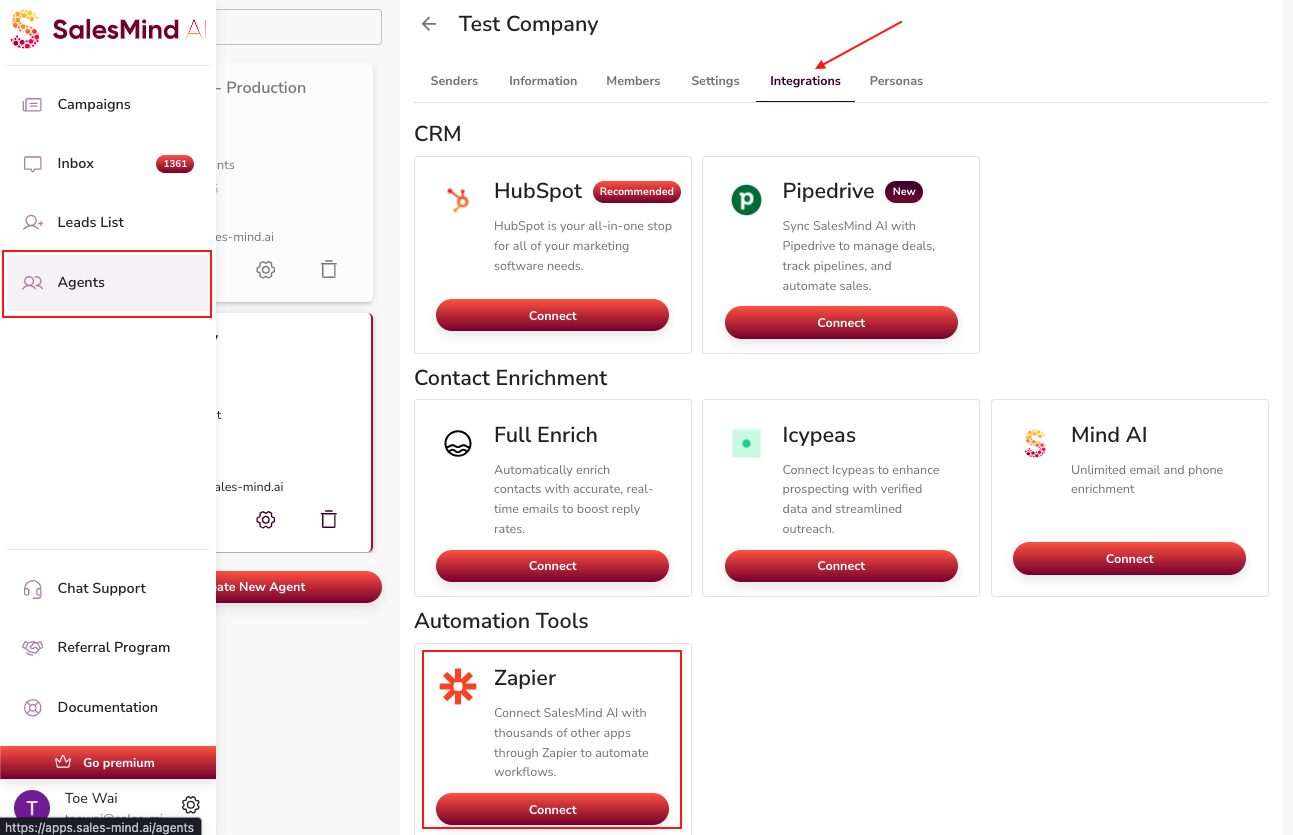
- Access to Agents > Integration in your QuantumOutbound dashboard
Step 1: Access the Zapier Integration
- In QuantumOutbound, go to Agents > Integration > Zapier.
- Click Connect.
Step 2: Log In or Sign Up to Zapier
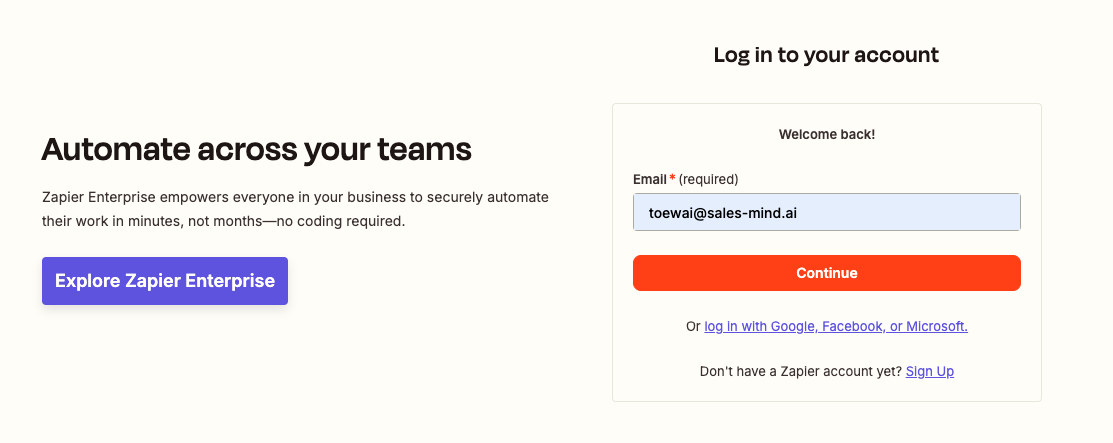
You'll be redirected to Zapier's site.
- Log in with your existing Zapier account, or sign up for a new one.
Step 3: Accept the Invite and Build a Zap
- Once logged in, click Accept Invite & Build a Zap.
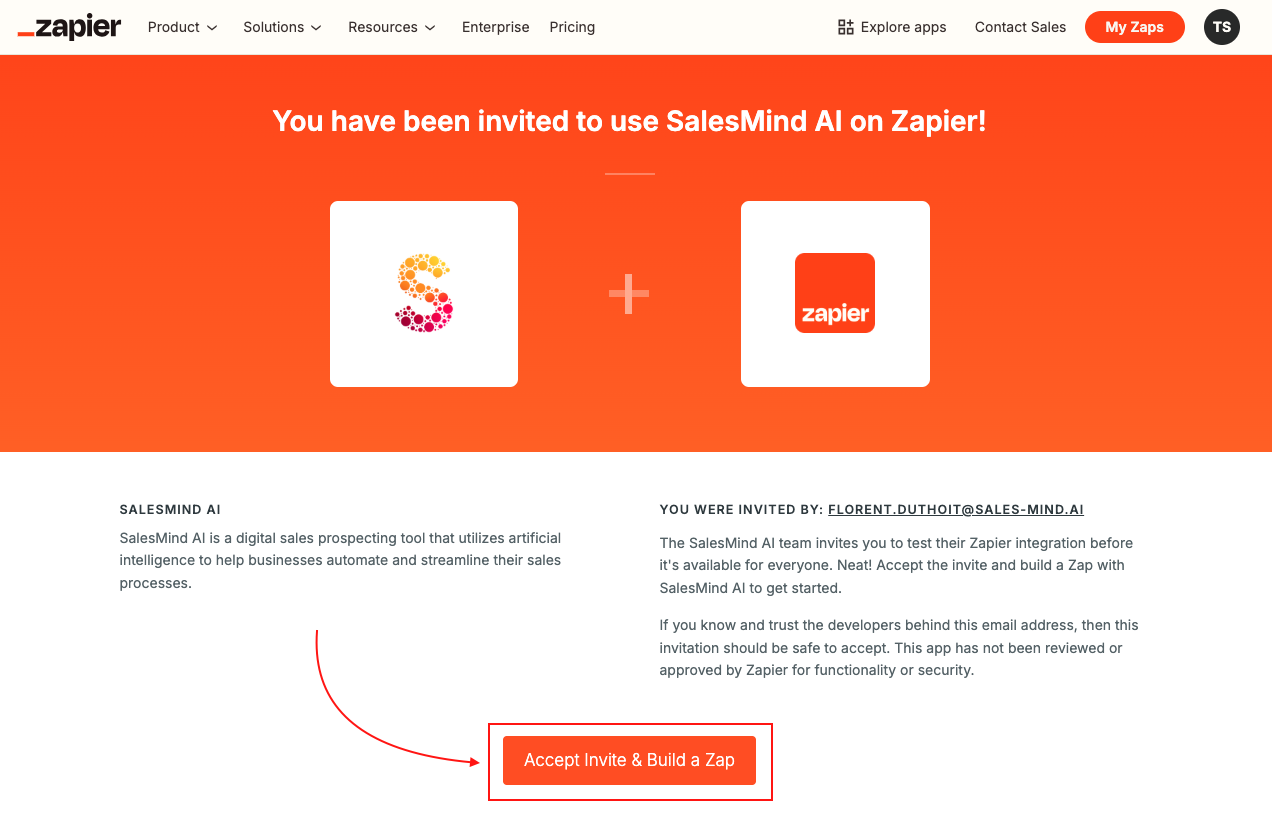
This links your QuantumOutbound account to Zapier. You can now create automated workflows using QuantumOutbound as a trigger or action.
Step 4: Start Automating
With the connection live, you can build Zaps that:
- Trigger when a new lead is added in QuantumOutbound
- Send lead data to your CRM, Slack, Google Sheets, or email
- Automate follow-up tasks across thousands of apps
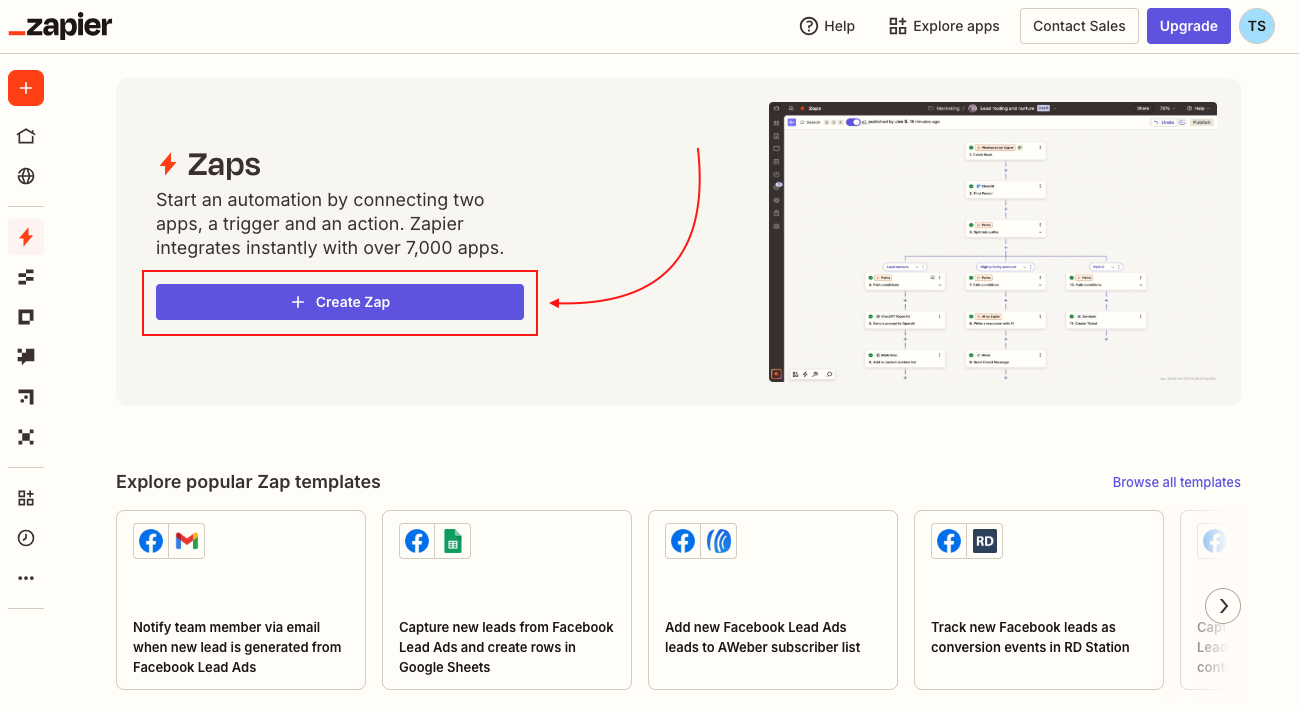
💡 Tip: Run a test Zap with a single lead before scaling. This confirms data is flowing correctly between QuantumOutbound and your connected app.
⚠️ Warning: Make sure you have the right permissions in QuantumOutbound to connect an agent to Zapier. If the Connect button is greyed out, check your account role.
What's Next
- Explore the QuantumOutbound API for more advanced, custom integrations
- Check the Autopilot and CRM features to understand which QuantumOutbound events you can trigger Zaps from