
Prerequisites
Before inviting a teammate, make sure you have Admin access to the agent. Only Admins can manage members.
How to Invite a Teammate
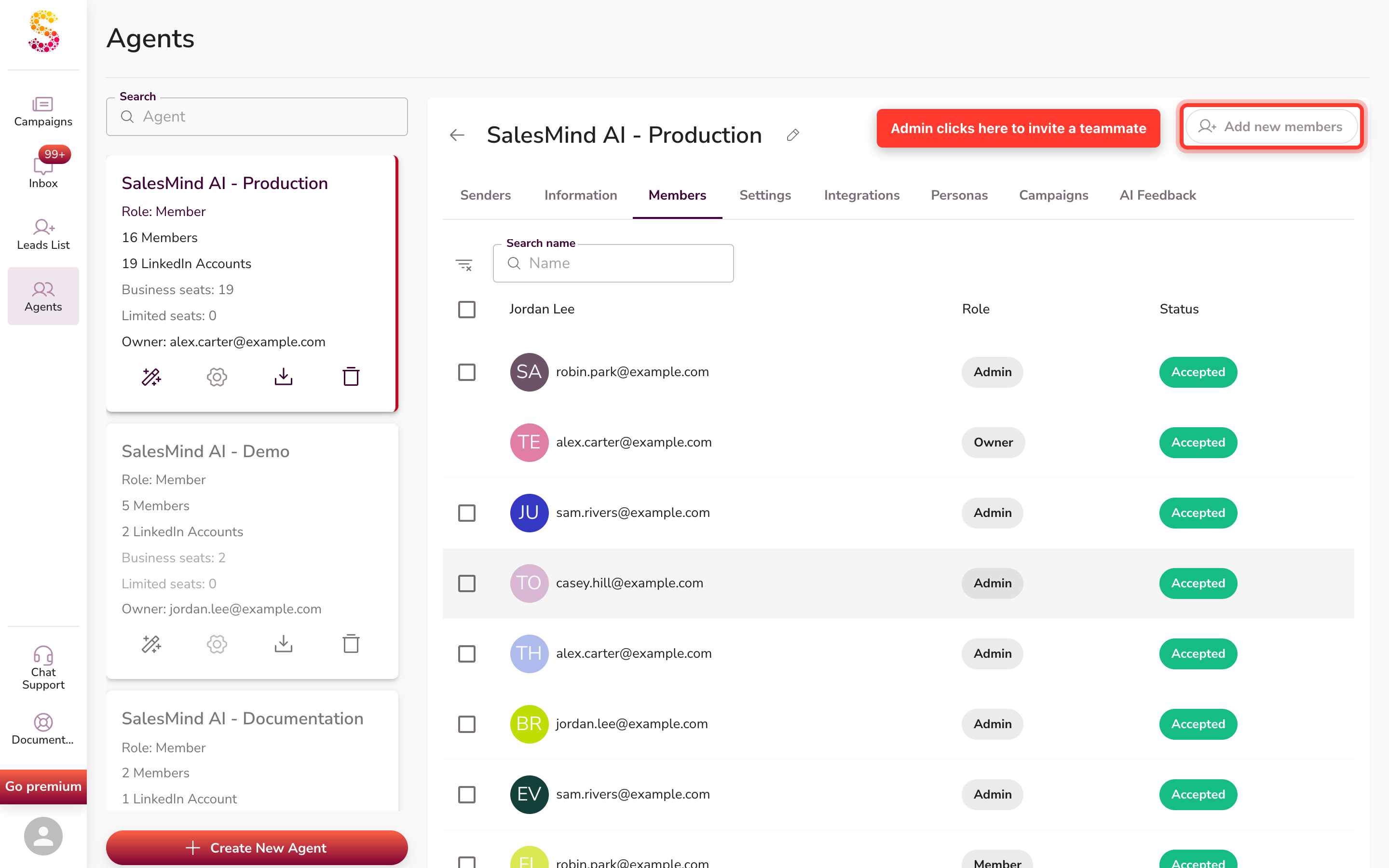
- Open your Agent and click the Members tab.
- Click Add Member.
- Enter your teammate's email address.
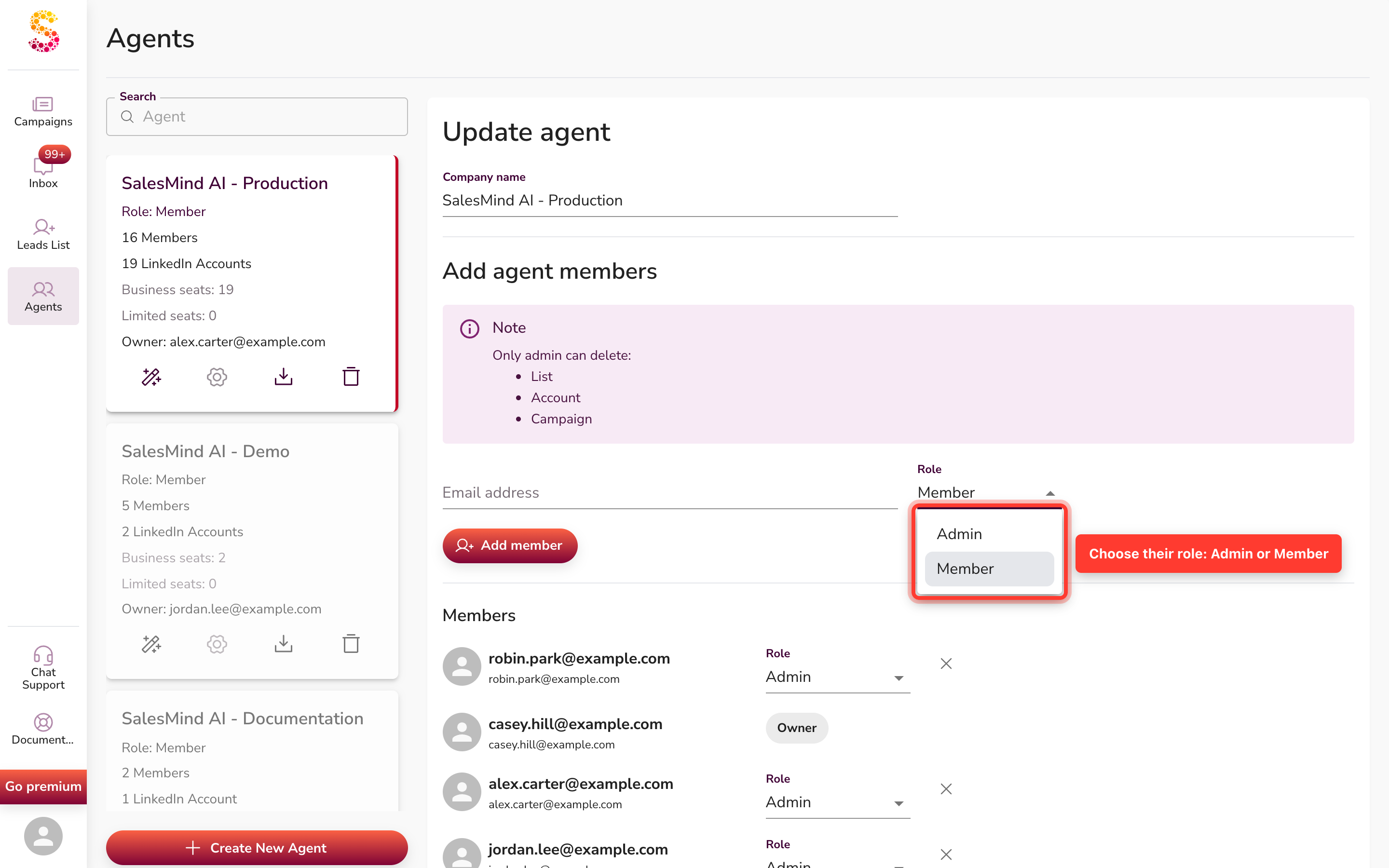
- Choose their role: Admin or Member.
- Click Add Member to confirm.
Your teammate gets an email invitation. They can also sign up right away at the QuantumOutbound app using the invited email — the email is a confirmation, not a gate. As soon as they sign up (or sign in if they already have an account) with the same email address, they show up in your agent as a Member.

Understanding Roles
| Role | What they can do |
|---|---|
| Member | Create and manage campaigns, lists, and conversations |
| Admin | Everything a Member can do, plus delete lists, accounts, and campaigns |
⚠️ Warning: Deletion is permanent. Only assign Admin to teammates who genuinely need it.
💡 Tip: When in doubt, start teammates as Members. You can always upgrade their role later.
What's Next
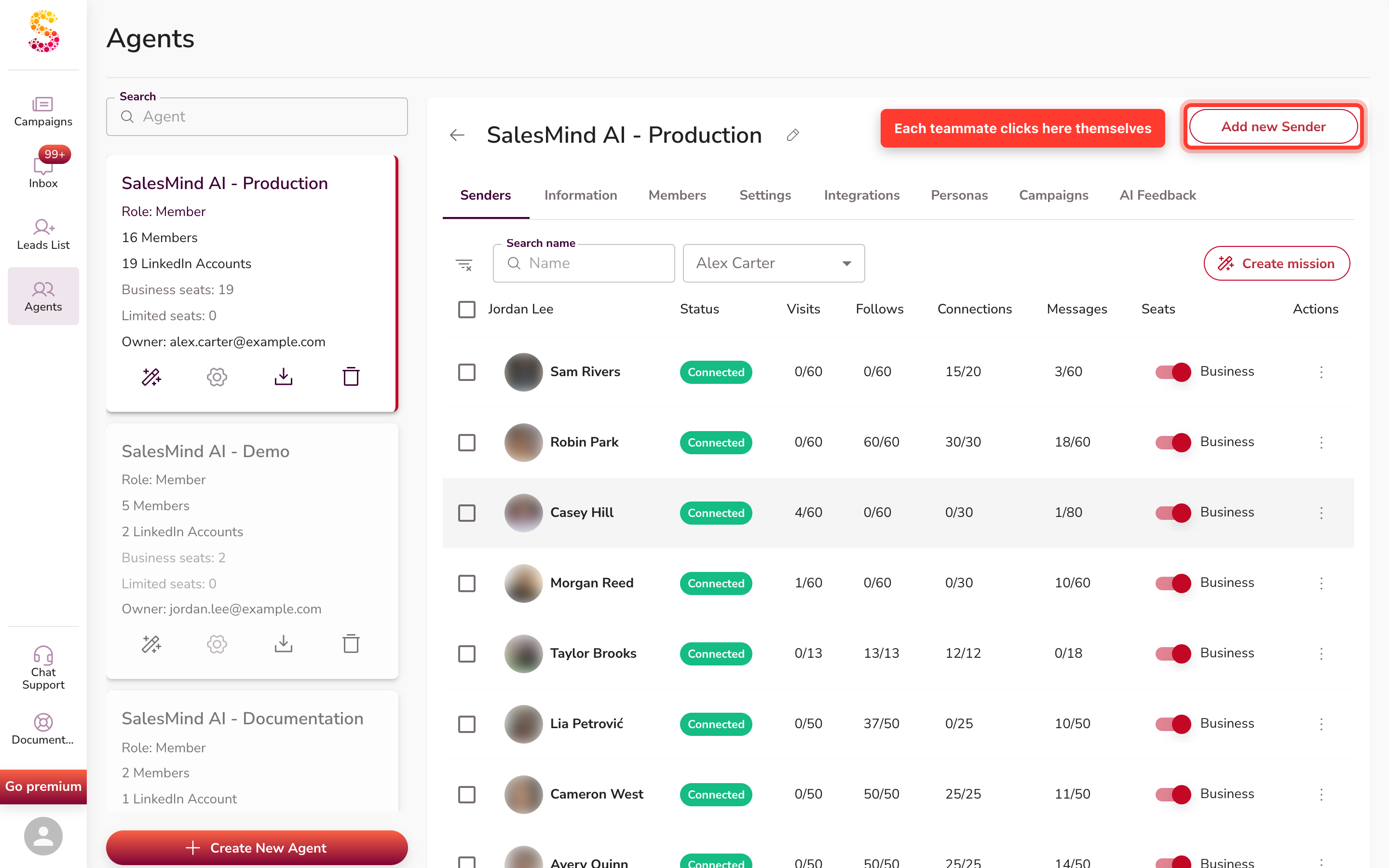
👉 Important: Inviting someone as a Member is only the first step. If your teammate also needs to send outreach from their own LinkedIn, they have to add themselves as a Sender. Senders are connected per-person — admins can't do it for them. See the full flow in How a Teammate Becomes a Sender.
- See How a Teammate Becomes a Sender for the end-to-end onboarding flow (Member to Sender).
- See Member Roles and Permissions in Agents for a full breakdown of what each role can and can't do.
- To manage your agent's settings, see Managing an Agent.